Keyboards
A physical keyboard can be an essential input device for entering text, playing games, controlling apps, and more.
People can connect a physical keyboard to any device except Apple Watch. Mac users tend to use a physical keyboard all the time and iPad users often do. Many games work well with a physical keyboard, and people can prefer using one instead of a virtual keyboard when entering a lot of text.
Keyboard users often appreciate using keyboard shortcuts to speed up their interactions with apps and games. A keyboard shortcut is a combination of a primary key and one or more modifier keys (Control, Option, Shift, and Command) that map to a specific command. A keyboard shortcut in a game — called a key binding — often consists of a single key.
Apple defines standard keyboard shortcuts to work consistently across the system and most apps, helping people transfer their knowledge to new experiences. Some apps define custom keyboard shortcuts for the app-specific commands people use most; most games define custom key bindings that make it quick and efficient to use the keyboard to control the game. For guidance, see Game controls.
Best practices
Support Full Keyboard Access when possible. Available in iOS, iPadOS, macOS, and visionOS, Full Keyboard Access lets people navigate and activate windows, menus, controls, and system features using only the keyboard. To test Full Keyboard Access in your app or game, turn it on in the Accessibility area of the system-supplied Settings app. For developer guidance, see Support Full Keyboard Access in your iOS app and isFullKeyboardAccessEnabled.
Respect standard keyboard shortcuts. While using most apps, people generally expect to rely on the standard keyboard shortcuts that work in other apps and throughout the system. If your app offers a unique action that people perform frequently, prefer creating a custom shortcut for it instead of repurposing a standard one that people associate with a different action. While playing a game, people may expect to use certain standard keyboard shortcuts — such as Command–Q to quit the game — but they also expect to be able to modify each game’s key bindings to fit their personal play style. For guidance, see Game controls.
Standard keyboard shortcuts
In general, don’t repurpose standard keyboard shortcuts for custom actions. People can get confused when the shortcuts they know work differently in your app or game. Only consider redefining a standard shortcut if its action doesn’t make sense in your experience. For example, if your app doesn’t support text editing, it doesn’t need a text-styling command like Italic, so you might repurpose Command–I for an action that has more relevance, like Get Info.
People expect each of the following standard keyboard shortcuts to perform the action listed in the table below.
| Primary key | Keyboard shortcut | Action |
|---|---|---|
| Space | Command-Space | Show or hide the Spotlight search field. |
| Shift-Command-Space | Varies. | |
| Option-Command-Space | Show the Spotlight search results window. | |
| Control-Command-Space | Show the Special Characters window. | |
| Tab | Shift-Tab | Navigate through controls in a reverse direction. |
| Command-Tab | Move forward to the next most recently used app in a list of open apps. | |
| Shift-Command-Tab | Move backward through a list of open apps (sorted by recent use). | |
| Control-Tab | Move focus to the next group of controls in a dialog or the next table (when Tab moves to the next cell). | |
| Control-Shift-Tab | Move focus to the previous group of controls. | |
| Esc | Esc | Cancel the current action or process. |
| Esc | Option-Command-Esc | Open the Force Quit dialog. |
| Eject | Control-Command-Eject | Quit all apps (after changes have been saved to open documents) and restart the computer. |
| Control-Option-Command-Eject | Quit all apps (after changes have been saved to open documents) and shut the computer down. | |
| F1 | Control-F1 | Toggle full keyboard access on or off. |
| F2 | Control-F2 | Move focus to the menu bar. |
| F3 | Control- F3 | Move focus to the Dock. |
| F4 | Control-F4 | Move focus to the active (or next) window. |
| Control-Shift-F4 | Move focus to the previously active window. | |
| F5 | Control-F5 | Move focus to the toolbar. |
| Command-F5 | Turn VoiceOver on or off. | |
| F6 | Control-F6 | Move focus to the first (or next) panel. |
| Control-Shift-F6 | Move focus to the previous panel. | |
| F7 | Control-F7 | Temporarily override the current keyboard access mode in windows and dialogs. |
| F8 | Varies. | |
| F9 | Varies. | |
| F10 | Varies. | |
| F11 | Show desktop. | |
| F12 | Hide or display Dashboard. | |
| Grave accent (`) | Command-Grave accent | Activate the next open window in the frontmost app. |
| Shift-Command-Grave accent | Activate the previous open window in the frontmost app. | |
| Option-Command-Grave accent | Move focus to the window drawer. | |
| Hyphen (-) | Command-Hyphen | Decrease the size of the selection. |
| Option-Command-Hyphen | Zoom out when screen zooming is on. | |
| Left bracket ({) | Command-Left bracket | Left-align a selection. |
| Right bracket (}) | Command-Right bracket | Right-align a selection. |
| Pipe (|) | Command-Pipe | Center-align a selection. |
| Colon (:) | Command-Colon | Display the Spelling window. |
| Semicolon (;) | Command-Semicolon | Find misspelled words in the document. |
| Comma (,) | Command-Comma | Open the app’s settings window. |
| Control-Option-Command-Comma | Decrease screen contrast. | |
| Period (.) | Command-Period | Cancel an operation. |
| Control-Option-Command-Period | Increase screen contrast. | |
| Question mark (?) | Command-Question mark | Open the app’s Help menu. |
| Forward slash (/) | Option-Command-Forward slash | Turn font smoothing on or off. |
| Equal sign (=) | Shift-Command-Equal sign | Increase the size of the selection. |
| Option-Command-Equal sign | Zoom in when screen zooming is on. | |
| 3 | Shift-Command-3 | Capture the screen to a file. |
| Control-Shift-Command-3 | Capture the screen to the Clipboard. | |
| 4 | Shift-Command-4 | Capture a selection to a file. |
| Control-Shift-Command-4 | Capture a selection to the Clipboard. | |
| 8 | Option-Command-8 | Turn screen zooming on or off. |
| Control-Option-Command-8 | Invert the screen colors. | |
| A | Command-A | Select every item in a document or window, or all characters in a text field. |
| Shift-Command-A | Deselect all selections or characters. | |
| B | Command-B | Boldface the selected text or toggle boldfaced text on and off. |
| C | Command-C | Copy the selection to the Clipboard. |
| Shift-Command-C | Display the Colors window. | |
| Option-Command-C | Copy the style of the selected text. | |
| Control-Command-C | Copy the formatting settings of the selection and store on the Clipboard. | |
| D | Option-Command-D | Show or hide the Dock. |
| Control-Command-D | Display the definition of the selected word in the Dictionary app. | |
| E | Command-E | Use the selection for a find operation. |
| F | Command-F | Open a Find window. |
| Option-Command-F | Jump to the search field control. | |
| Control-Command-F | Enter full screen. | |
| G | Command-G | Find the next occurrence of the selection. |
| Shift-Command-G | Find the previous occurrence of the selection. | |
| H | Command-H | Hide the windows of the currently running app. |
| Option-Command-H | Hide the windows of all other running apps. | |
| I | Command-I | Italicize the selected text or toggle italic text on or off. |
| Command-I | Display an Info window. | |
| Option-Command-I | Display an inspector window. | |
| J | Command-J | Scroll to a selection. |
| M | Command-M | Minimize the active window to the Dock. |
| Option-Command-M | Minimize all windows of the active app to the Dock. | |
| N | Command-N | Open a new document. |
| O | Command-O | Display a dialog for choosing a document to open. |
| P | Command-P | Display the Print dialog. |
| Shift-Command-P | Display the Page Setup dialog. | |
| Q | Command-Q | Quit the app. |
| Shift-Command-Q | Log out the person currently logged in. | |
| Option-Shift-Command-Q | Log out the person currently logged in without confirmation. | |
| S | Command-S | Save a new document or save a version of a document. |
| Shift-Command-S | Duplicate the active document or initiate a Save As. | |
| T | Command-T | Display the Fonts window. |
| Option-Command-T | Show or hide a toolbar. | |
| U | Command-U | Underline the selected text or turn underlining on or off. |
| V | Command-V | Paste the Clipboard contents at the insertion point. |
| Shift-Command-V | Paste as (Paste as Quotation, for example). | |
| Option-Command-V | Apply the style of one object to the selection. | |
| Option-Shift-Command-V | Paste the Clipboard contents at the insertion point and apply the style of the surrounding text to the inserted object. | |
| Control-Command-V | Apply formatting settings to the selection. | |
| W | Command-W | Close the active window. |
| Shift-Command-W | Close a file and its associated windows. | |
| Option-Command-W | Close all windows in the app. | |
| X | Command-X | Remove the selection and store on the Clipboard. |
| Z | Command-Z | Undo the previous operation. |
| Shift-Command-Z | Redo (when Undo and Redo are separate commands rather than toggled using Command-Z). | |
| Right arrow | Command-Right arrow | Change the keyboard layout to current layout of Roman script. |
| Shift-Command-Right arrow | Extend selection to the next semantic unit, typically the end of the current line. | |
| Shift-Right arrow | Extend selection one character to the right. | |
| Option-Shift-Right arrow | Extend selection to the end of the current word, then to the end of the next word. | |
| Control-Right arrow | Move focus to another value or cell within a view, such as a table. | |
| Left arrow | Command-Left arrow | Change the keyboard layout to current layout of system script. |
| Shift-Command-Left arrow | Extend selection to the previous semantic unit, typically the beginning of the current line. | |
| Shift-Left arrow | Extend selection one character to the left. | |
| Option-Shift-Left arrow | Extend selection to the beginning of the current word, then to the beginning of the previous word. | |
| Control-Left arrow | Move focus to another value or cell within a view, such as a table. | |
| Up arrow | Shift-Command-Up arrow | Extend selection upward in the next semantic unit, typically the beginning of the document. |
| Shift-Up arrow | Extend selection to the line above, to the nearest character boundary at the same horizontal location. | |
| Option-Shift-Up arrow | Extend selection to the beginning of the current paragraph, then to the beginning of the next paragraph. | |
| Control-Up arrow | Move focus to another value or cell within a view, such as a table. | |
| Down arrow | Shift-Command-Down arrow | Extend selection downward in the next semantic unit, typically the end of the document. |
| Shift-Down arrow | Extend selection to the line below, to the nearest character boundary at the same horizontal location. | |
| Option-Shift-Down arrow | Extend selection to the end of the current paragraph, then to the end of the next paragraph (include the paragraph terminator, such as Return, in cut, copy, and paste operations). | |
| Control-Down arrow | Move focus to another value or cell within a view, such as a table. |
The system also defines several keyboard shortcuts for use with localized versions of the system, localized keyboards, keyboard layouts, and input methods. These shortcuts don’t correspond directly to menu commands.
| Keyboard shortcut | Action |
|---|---|
| Control-Space | Toggle between the current and last input source. |
| Control-Option-Space | Switch to the next input source in the list. |
| [Modifier key]-Command-Space | Varies. |
| Command-Right arrow | Change keyboard layout to current layout of Roman script. |
| Command-Left arrow | Change keyboard layout to current layout of system script. |
Custom keyboard shortcuts
Define custom keyboard shortcuts for only the most frequently used app-specific commands. People appreciate using keyboard shortcuts for actions they perform frequently, but defining too many new shortcuts can make your app seem difficult to learn.
Use modifier keys in ways that people expect. For example, pressing Command while dragging moves items as a group, and pressing Shift while drag-resizing constrains resizing to the item’s aspect ratio. In addition, holding an arrow key moves the selected item by the smallest app-defined unit of distance until people release the key.
Here are the modifier keys and the symbols that represent them.
| Modifier key | Symbol | Recommended usage |
|---|---|---|
| Command |  | Prefer the Command key as the main modifier key in a custom keyboard shortcut. |
| Shift |  | Prefer the Shift key as a secondary modifier that complements a related shortcut. |
| Option |  | Use the Option modifier sparingly for less-common commands or power features. |
| Control |  | Avoid using the Control key as a modifier. The system uses Control in many systemwide features and shortcuts, like moving focus or capturing screenshots. |
List modifier keys in the correct order. If you use more than one modifier key in a custom shortcut, always list them in this order: Control, Option, Shift, Command.
Avoid adding Shift to a shortcut that uses the upper character of a two-character key. People already understand that they must hold the Shift key to type the upper character of a two-character key, so it’s clearer to simply list the upper character in the shortcut. For example, the keyboard shortcut for Hide Status Bar is Command-Slash, whereas the keyboard shortcut for Help is Command-Question mark, not Shift-Command-Slash.
Let the system localize and mirror your keyboard shortcuts as needed. The system automatically localizes a shortcut’s primary and modifier keys to support the currently connected keyboard; if your app or game switches to a right-to-left layout, the system automatically mirrors the shortcut. For guidance, see Right to left.
Avoid creating a new shortcut by adding a modifier to an existing shortcut for an unrelated command. For example, because people are accustomed to using Command-Z for undoing an action, it would be confusing to use Shift-Command-Z as the shortcut for a command that’s unrelated to undo and redo.
Platform considerations
No additional considerations for iOS, iPadOS, macOS, or tvOS. Not supported in watchOS.
visionOS
In visionOS, an app’s keyboard shortcuts appear in the shortcut interface that displays when people hold the Command key on a connected keyboard. Similar in organization to an app’s menu bar menus on iPad or Mac, the shortcut interface on Apple Vision Pro displays app commands in familiar system-defined menu categories such as File, Edit, and View. Unlike menu bar menus, the shortcut interface displays all relevant categories in one view, listing within each category only available commands that also have shortcuts.
Write descriptive shortcut titles. Because the shortcut interface displays a flat list of all items in each category, submenu titles aren’t available to provide context for their child items. Make sure each shortcut title is descriptive enough to convey its action without the additional context a submenu title might provide. For developer guidance, see discoverabilityTitle.
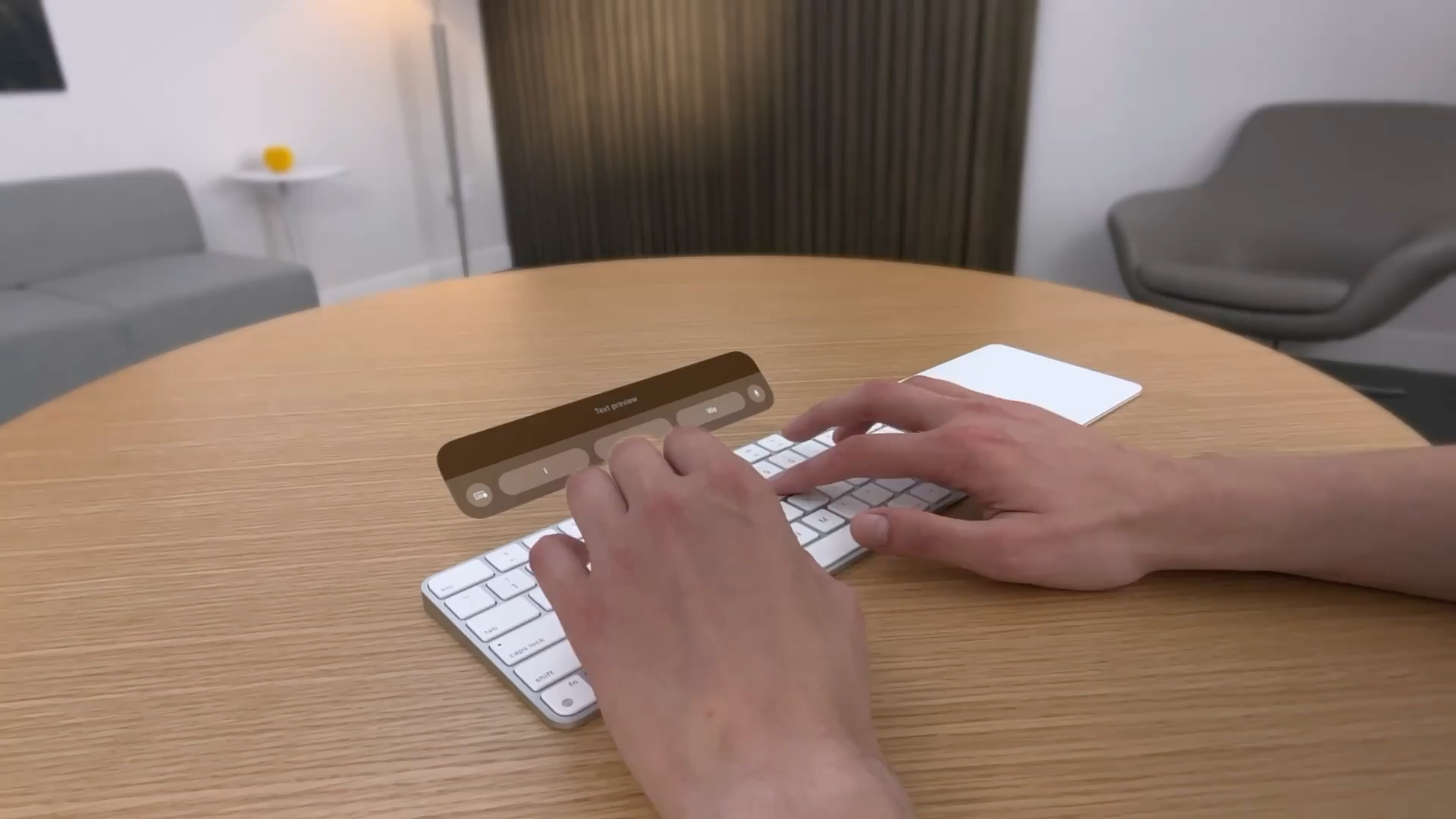
Recognize that people see an overlay when they use a physical keyboard with your visionOS app or game. When people connect a physical keyboard while using your visionOS app or game, the system displays a virtual keyboard overlay that provides typing completion and other controls.
Resources
Related
Developer documentation
KeyboardShortcut — SwiftUI
Input events — SwiftUI
Handling key presses made on a physical keyboard — UIKit
Mouse, Keyboard, and Trackpad — AppKit
Change log
| Date | Changes |
|---|---|
| June 9, 2025 | Moved game-specific key bindings guidance to the Game controls page. |
| June 10, 2024 | Added game-specific guidance and made organizational updates. |
| June 21, 2023 | Updated to include guidance for visionOS. |